How to Fix Smart Home Dropouts: Protocols & Mesh Network Setup Guide
When smart home devices constantly show 'No Response' or take forever to execute commands, most people instantly blame the hardware. But actual physical defects are surprisingly rare.
Instead, the culprit behind almost all wireless control failures is a bottleneck caused by cramming devices onto a home network without considering how different wireless protocols behave. Once you understand the core mechanics of each standard and arrange your network in the right order, you can run dozens of gadgets seamlessly without lag.
Characteristics, Pros, and Cons of Major Smart Home Protocols
Smart home communication methods differ vastly in power consumption and data transmission. To build a stable control network, you first need to understand what makes each protocol tick.
- Wi-Fi: Low barrier to entry because it connects directly to your home router without a dedicated hub. However, its high data throughput and heavy power draw make it terrible for battery-powered sensors. Cramming more than 20 Wi-Fi IoT devices onto a standard consumer router will easily choke your traffic and cause dropouts.
- Zigbee: A low-power wireless standard custom-built for smart homes. While it has modest data speeds, its extreme power efficiency means a single coin-cell battery can power a temperature or door sensor for over a year. It builds a self-healing mesh network that extends your coverage, but it strictly requires a dedicated hub to aggregate signals.
- Z-Wave: Similar to Zigbee in how it forms a low-power mesh network, but it operates on the 800–900MHz frequency band. The main advantage is zero interference with the crowded 2.4GHz band used by Wi-Fi and Bluetooth. However, frequencies vary by region, so you have to be extra careful with compatibility when buying imported gear.
- Matter & Thread: The newest dynamic duo—Matter is a universal application layer backed by global tech giants, while Thread is a low-power IP-based wireless mesh network designed to support it. It breaks down walled gardens for cross-brand compatibility. Thanks to local control that bypasses the internet, it delivers blazing-fast response times.
The more mains-powered devices you have, the stronger and more expansive your mesh network becomes. Before you just blindly buy more gadgets, figure out which wireless standard will tie them all together.
Choosing the Right Main Hub and Protocol for Your Space
When designing a smart home ecosystem, always factor in your total device count and the physical size of your living space.
- Studios & Small Apartments (Under 5 devices): If you're only controlling a couple of smart plugs or lights, standard Wi-Fi without a separate hub is more than enough.
- Medium-to-Large Apartments & Houses (10+ devices): Once you start adding sensors, switches, and motorized curtains, building a Zigbee- or Thread-based mesh network is essential to prevent router overload.
Choosing the right central hub is just as important. Modern controllers like the Samsung SmartThings Station, Apple HomePod, and Aqara Hub natively support multi-protocol setups. Plant one good hub dead center in your home, and you'll have the freedom to freely add sensors from various brands down the line.
The Step-by-Step Mesh Installation Order to Eliminate Dead Zones
Because mesh communications like Zigbee and Thread rely on devices acting as stepping stones to relay signals, the order in which you pair your devices dictates your overall network health.
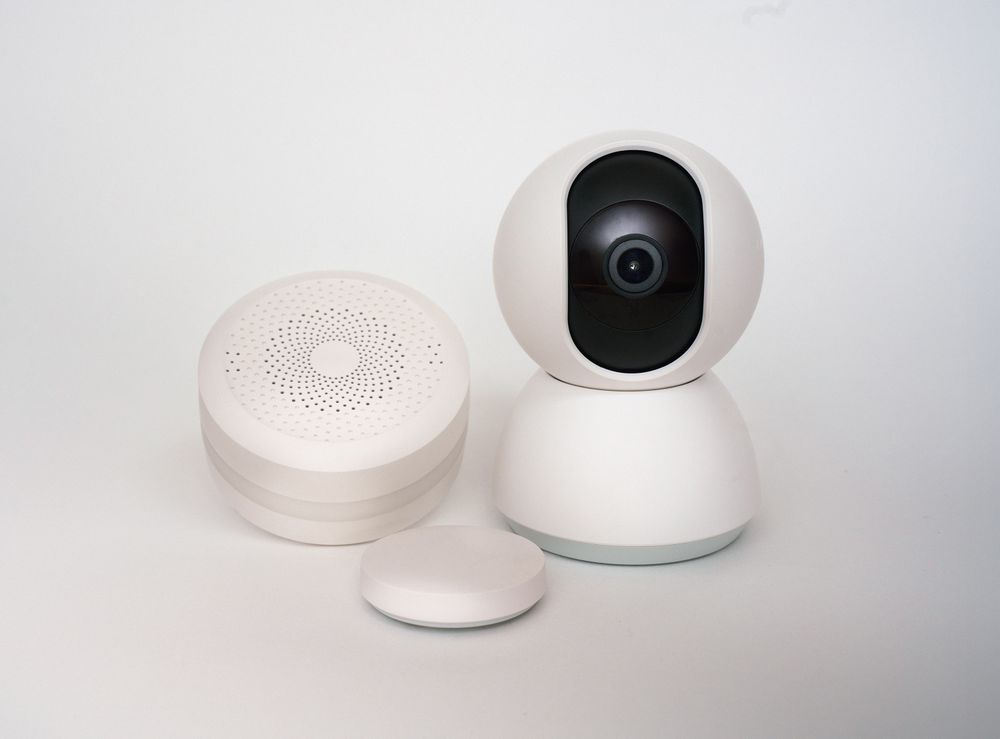
- Step 1 (Deploy Router Devices): Before pairing any battery-powered sensors, install your always-on, mains-powered gear first—smart plugs, in-wall smart switches, and smart bulbs. These devices act as 'routers' that relay signals across the house. Space them out evenly across hallways and rooms to ensure zero dead zones.
- Step 2 (Deploy End Devices): Once your router backbone is fully established, bring in your door sensors, temp/humidity monitors, and wireless buttons—aka 'end devices.' Because these route their data through the closest mains-powered device back to the hub, your signal reception stays rock-solid even in concrete-heavy apartments.
Just remember: if you accidentally unplug a smart plug acting as a router, you risk instantly cutting off dozens of downstream sensors.
3 Common Smart Home Setup Errors and How to Fix Them
If your devices are dropping commands or acting up for no apparent reason, check for these three common network interference culprits.
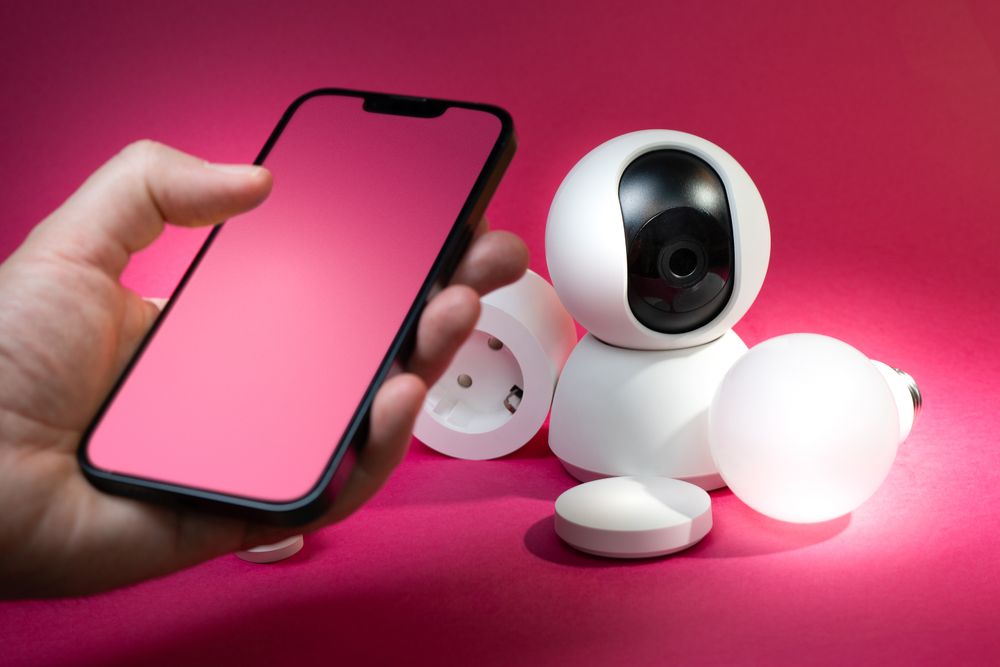
- Error 1 (Overloading Wi-Fi Smart Devices): Relying entirely on cheap Wi-Fi smart plugs will eventually swamp your router with too many active IP leases, causing severe traffic bottlenecks and dragging down the internet speeds of your phones and laptops.
- Error 2 (2.4GHz Wi-Fi and Zigbee Frequency Collision): Both Wi-Fi and Zigbee share the crowded 2.4GHz spectrum. If your Wi-Fi router is camping out on channels 1 or 6 while your Zigbee network tries to use an overlapping channel, brutal interference will cause commands to lag by 1 to 2 seconds. (Fix: Lock your Wi-Fi router to channel 1, 6, or 11, and set your Zigbee channel between 20 and 25 to minimize overlap.)
- Error 3 (App Fragmentation Chaos): Managing devices across half a dozen manufacturer apps makes troubleshooting automation loops an absolute nightmare. Always consolidate and manage all your devices under a single, unified hub app.
Adopting Matter & Thread and Quick Wi-Fi Channel Tweaks
If you plan on expanding your smart home in the future, checking for next-gen Matter and Thread support is a massive win for long-term reliability.
To control Thread-based Matter devices, you need a 'Thread Border Router' that bridges your home Wi-Fi network with your Thread network. Devices like the SmartThings Station, Apple HomePod mini, and Google Nest Hub (2nd Gen) have this built right in, so make sure to look for it when picking a main hub. Matter devices operate locally inside your home network without needing to ping a cloud server, ensuring snappy response times regardless of your internet connection.
Want an instant speed boost without buying new hardware? Log into your wireless router's admin page (usually 192.168.0.1) and check if your 2.4GHz Wi-Fi channel is set to 'Auto.' Spending 3 minutes manually locking it to a clean channel (1, 6, or 11) can drastically slash latency and make your home feel instantly responsive.