Why Is Your PC Underperforming? The Ultimate Pre-Gaming Optimization Checklist
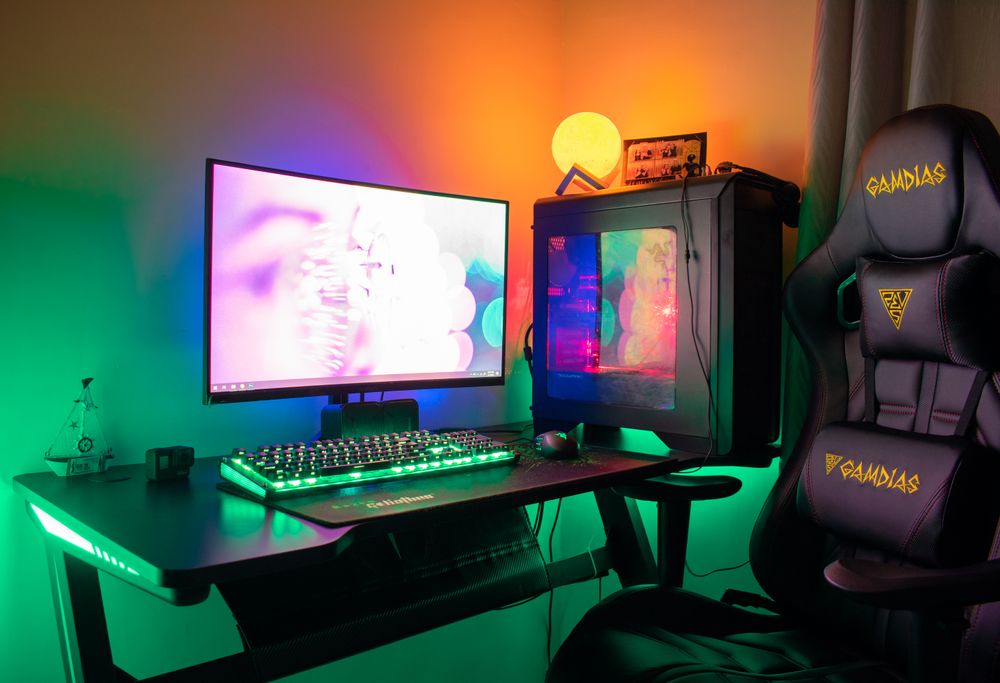
Ever noticed someone with the exact same PC specs getting way better FPS than you? Before you start eyeing expensive hardware upgrades, it's time to audit your settings. Here is a step-by-step optimization checklist—starting with the easiest, zero-cost tweaks that yield the biggest performance gains.
① Graphics Drivers: 80% of the Battle
Both NVIDIA and AMD release "Game Ready" drivers tailored for major new releases. If a new game is stuttering out of the box, your drivers are the first suspect. A quick update via the NVIDIA App (formerly GeForce Experience) or AMD Software Adrenalin Edition can make a night-and-day difference compared to running drivers that are months (or years) out of date.
② Three Windows Toggles to Flip Right Now
- Game Mode: Go to Settings → Gaming → Game Mode and toggle it ON. This prioritizes your game and suppresses background tasks like Windows Update.
- Hardware-Accelerated GPU Scheduling (HAGS): Settings → System → Display → Graphics. Turn this on to reduce latency and improve performance (on supported GPUs).
- Power Mode: If you're on a laptop, set your power plan to 'Best Performance'. Gaming on 'Eco' or 'Balanced' heavily throttles your hardware. Also, always plug in your charger while gaming—running on battery power severely caps your GPU and CPU.
③ In-Game Settings: Not All Options Are Created Equal
When you need more frames, don't just blindly drop everything to 'Low'. Focus on the settings with the worst performance-to-visual ratio:
- Shadows & Reflections — These are massive resource hogs that you barely notice in the heat of battle. Lower these first.
- Anti-Aliasing (AA) — If you are playing at 1440p or 4K, you can easily lower or disable AA without noticing jagged edges.
- Texture Quality — As long as you have enough VRAM, keeping textures high has a minimal impact on FPS but keeps the game looking sharp.
④ Free FPS: Turn on Upscaling (DLSS / FSR)
Modern upscaling tech like NVIDIA's DLSS and AMD's FSR are absolute game-changers. They render the game at a lower resolution and use AI/advanced algorithms to upscale it to your native resolution. Toggle this to 'Quality' mode for a massive FPS boost with virtually zero loss in visual fidelity. It's essentially free performance.
⑤ Background Clutter and Thermal Throttling
- Close those dozens of open browser tabs, Discord screen shares, and background recording software. They are silent frame thieves. Hit
Ctrl + Shift + Escto open Task Manager and see what's eating your CPU and RAM. - Dust and Heat — If your game runs fine at first but starts stuttering after 30 minutes, your PC is likely thermal throttling. Clean out the dust and make sure your fans are actually doing their job.
FAQ
Q. A driver update made things worse. Now what?
Roll back. Both NVIDIA and AMD offer older driver versions officially, so note the version number that ran well and reinstall it.
Q. What background apps should I close for gaming?
Browsers with many tabs and overlay apps are the usual suspects. Stacked overlays from chat, recording, and FPS tools each shave frames, so disable the ones you do not use.
Q. How do I know if heat is throttling my PC?
Monitor CPU and GPU temperatures during play. If they hover near 90°C, thermal throttling is likely — dust cleaning and better airflow are the cheapest upgrade you can buy.
Q. Does RAM placement really matter?
Yes. Two sticks installed in the correct slots run in dual channel, which noticeably helps both integrated and discrete graphics. Check your motherboard manual for the right slots.