How to Safely Transfer Banking Apps and Certificates When Switching Phones
Unboxing a brand-new smartphone is always exciting, but the thrill quickly fades the moment you turn it on and hit the inevitable wall: setting up your banking apps and security certificates. Unlike the past, mobile security has evolved by leaps and bounds, meaning you can no longer just clone your entire device and expect your banking or mobile payments to work out of the box. If you suddenly need to wire money or execute a stock trade during a busy morning, a frozen banking app can turn into an absolute nightmare. Knowing the exact sequence of security steps and authentication methods to handle before and after getting your new device is the ultimate shortcut to saving time and effort.
Why Auto-Cloning Tools Won't Touch Your Banking Apps
Data backup tools like Smart Switch or Move to iOS seamlessly transfer your contacts, photos, and general apps to your new phone in seconds. However, banking and brokerage apps are strictly left out. The encryption keys locked inside hardware-level secure enclaves (like Secure Enclave or TrustZone) are fundamentally designed to prevent any external extraction. As a result, your new device only gets an empty shell of the app, forcing you to log in from scratch. For example, even if Samsung's Smart Switch successfully mirrors your home screen layout and app placement, launching a financial app will greet you with a 'security environment has changed' alert and a factory-fresh state. This design is a crucial security measure to completely neutralize malicious attempts by attackers to steal authentication data through backup files if a device is lost or hacked.
If You Still Have Your Old Phone: Copying Joint Certificates in 2 Minutes
Joint certificates (Joint Certificates/Public Certificates), which are still widely used for public services and banking, are stored as files directly inside the device storage, meaning you need to manually move them first. Issuing a brand-new one requires a security card and extra verification steps, but if you still have your old smartphone in hand, the transfer is a breeze.
- Old Phone: Go to the certificate center in your primary bank app and select 'Send Joint Certificate.' Make sure your Wi-Fi or mobile data connection is stable to prevent dropouts during the transfer.
- New Phone: Install the same app and tap 'Import Joint Certificate.' App versions can differ slightly, so it's best to update the apps on both devices to their latest versions beforehand.
- Enter the Code: Type the 12-digit authorization code displayed on your old screen directly into the new device. These codes usually expire within 3 minutes, so instead of writing it down, read it visually and type it out quickly.
Financial certificates that utilize the Financial Telecommunications and Clearings Institute servers can skip this entire process; you can pull them straight from the cloud on your new device after a simple SMS identity check. Once registered, a financial certificate works seamlessly for three years without renewals, making this a great opportunity to ditch the clunky file-based joint certificates in favor of cloud-based financial or private certificates to drastically cut down on future hassles.
Things to Remember When Reissuing Mobile OTP
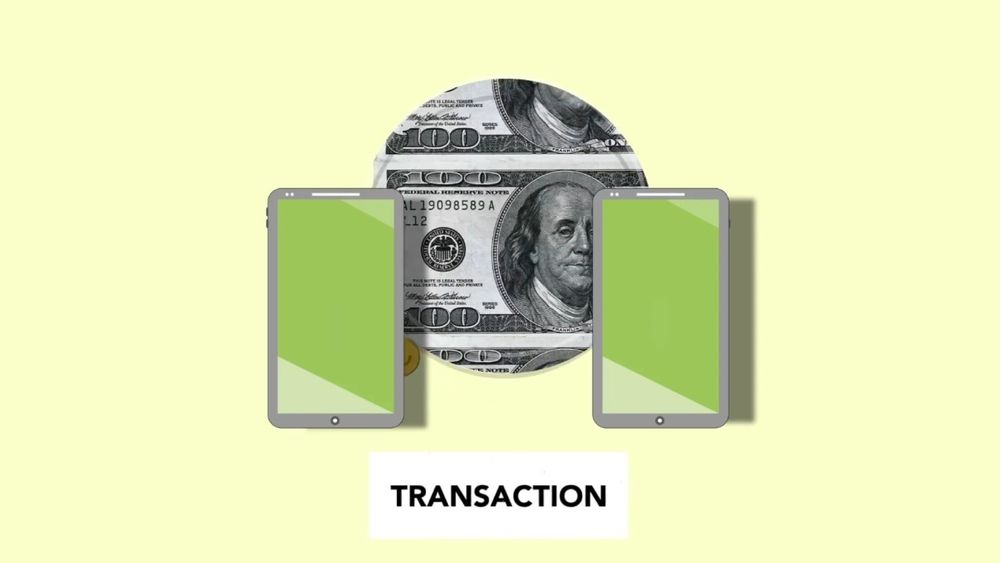
Mobile OTPs, which operate via smartphone software instead of a physical card, are tightly bound to the device's unique hardware identifier. Therefore, simply copying the app data over will cause errors or freeze transactions. To fix this, you'll need to open the bank app on your new device and go through non-face-to-face identity verification—including taking a photo of your ID and verifying an account with another bank—to issue a fresh OTP. Because mobile OTPs carry high security clearance and are mandatory for large transfers, poor camera focus or light glare frequently delays ID recognition during the issuance process. A good tip is to place your ID on a dark surface under bright lighting when taking the photo.
If you don't have your physical ID ready, you might end up having to visit a brick-and-mortar bank branch. If your driver's license or resident registration card isn't in your wallet, check if you can use a mobile ID app as an alternative. Since approval will be denied if there are any typos, make sure to double-check your name, resident registration number, and issue date.
Unregistering Trusted Devices Before Wiping Your Old Phone
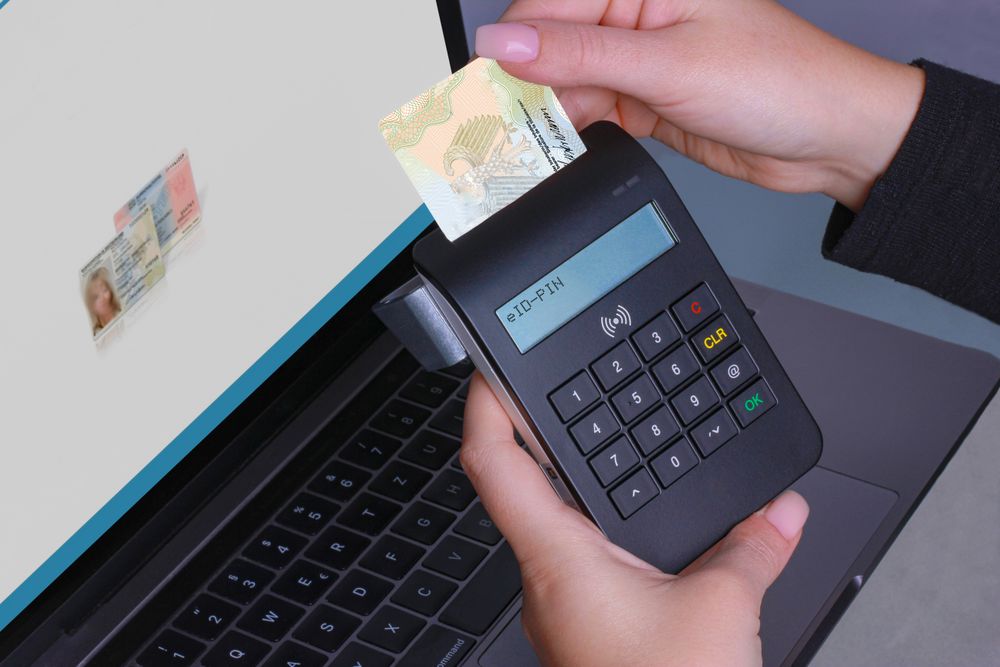
To prevent financial fraud, many people use the 'Trusted Device Service,' which restricts large transfers to a single designated terminal. You must disable this setting on your old phone before moving to the new one. If you forget and wipe your old phone first, you'll have to go through painful processes like enhanced identity verification and video calls on the new device to forcibly override the old registration. It's always best to check beforehand. The path to unregister a trusted device is usually located under the 'Security/Certification' or 'Settings' menu in each bank app, and occasionally requires one more SMS verification or simple PIN entry. Right before selling or trading in your old phone, make it a habit to open your banking apps one last time to ensure you've cleared your transfer limits and trusted device settings before running a factory reset.
The Right Order for Activating Mobile Payments and Card Apps
Samsung Wallet, Apple Pay, and various other payment services require you to re-enter your card details when switching devices. In particular, card company apps must complete phone-based identity verification under your name to properly sync your existing card list. For a smooth setup, it's most efficient to register your biometric info (like fingerprints or facial recognition) in your OS settings right after switching devices, activate a carrier authentication app like PASS, and then launch the card apps. Registering your fingerprint first saves you from the tedious task of typing out complex patterns or long passwords every time you log into a financial app later. Furthermore, when pulling up previously registered check or credit cards in card apps, you will likely need to re-enter the card expiration date and CVC code, so having your frequently used physical cards on hand before starting will prevent unnecessary delays.

Financial Data Migration Checklist
To ensure you finish your setup without missing a single thing, take a look at the itemized response guide below.
| Item | Old Smartphone | New Smartphone |
|---|---|---|
| Joint Certificate | Execute certificate export | Enter auth code & save |
| Mobile OTP | No action required | Non-face-to-face reissue with ID |
| Trusted Device | Deregister in security menu | Register new device |
| Mobile Pay | Verify payment PIN | Register biometrics & add cards |
The tighter our security systems get, the more hands-on work is required when switching devices. Because financial apps are inherently designed with user protection as the top priority, there are bound to be areas that simply cannot be automated during data replication. Therefore, before letting go of your old smartphone, visually verifying the security settings of your major banking and card apps—and sequentially migrating the necessary authentication tools—is the absolute best way to prevent unexpected inconveniences.