WhatsApp, Telegram, LINE and More: How to Back Up Chats and Move Them to a New Phone
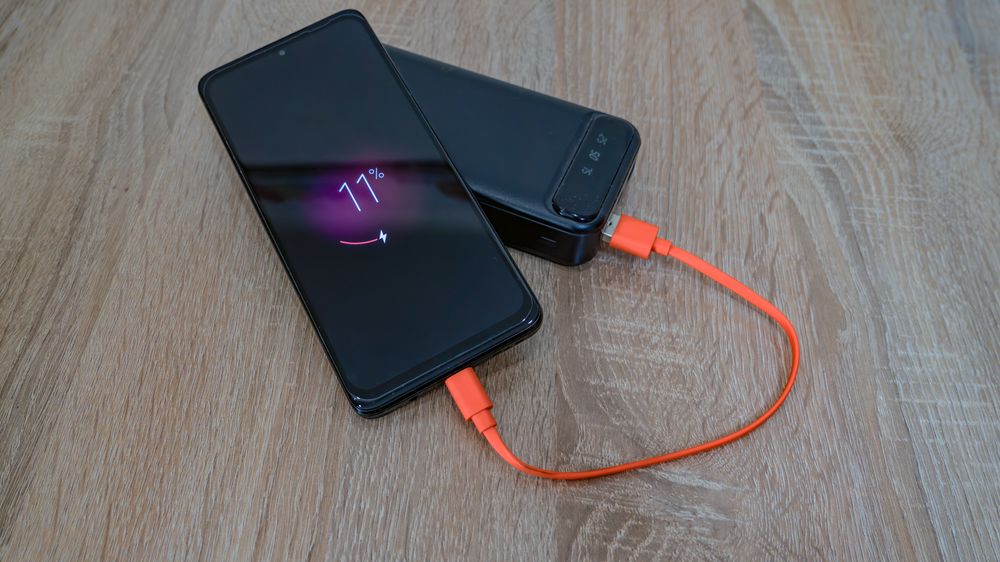
New phone in one hand, old phone in the other, and years of messages on the wrong one. Chat apps do not all protect that history the same way, and one confident tap can erase it. Here is how backup and transfer really work across WhatsApp, Telegram, Signal, LINE and KakaoTalk. Menus move with every update, so treat the paths below as a map.
① Two kinds of messenger, two amounts of work
Which camp your app sits in decides everything else.
- Cloud-first apps keep history on the company's servers. Sign in to Telegram anywhere and the chats are there. Its Secret Chats are the exception: they live only on the device that made them.
- Device-first apps keep history on the handset and give you a backup file instead. WhatsApp, Signal, LINE and KakaoTalk broadly work this way. No backup, no history.
Here is the part people learn too late: backing up and restoring are two separate steps, and signing in does neither for you.
② Where backups land, and the password nobody can reset
Update the app on the old phone, then run the backup on Wi-Fi with the charger in. Device-first apps park it in your Google account or Google Drive on Android, or iCloud on iPhone. If that storage is full the backup fails quietly, so check for a recent date and a believable size. Years of chat do not fit in a few megabytes.
Then the password. KakaoTalk sets a backup password, WhatsApp's optional encrypted backup uses a password or a long key, Signal asks for a passphrase of its own. Names differ by app; the rule does not. Nobody at the company can recover it for you, so write it somewhere that is not the phone you are handing in.
③ Restoring on the new phone, same number
- Install the app and sign in with the same number or account.
- Accept the restore offer, then enter your password or key.
Two traps. The restore prompt usually appears only during first-time setup; tap past it and you may have to uninstall and start over. And backups get overwritten, so never let a wiped phone push an empty one over your good one.
④ When the phone number changes too
Change the number inside the app, on the old phone, while both devices still work. WhatsApp and KakaoTalk both offer a change-number option in settings, though menu names move between versions. Number change first, fresh backup second, new handset third. Keep the old SIM live until every code lands.
⑤ Crossing over: Android to iPhone and back
The hard case. The platforms use different vaults, so a Google-account backup generally cannot be read by an iPhone. Several apps now offer direct device-to-device transfer over a cable or an on-screen code during setup, WhatsApp among them — check what your app and version support. KakaoTalk's cross-platform transfer is limited, and its paid cloud storage is the usual workaround.
Leaving an iPhone? Switch off iMessage first, or texts from iPhone friends can vanish into a service your Android never receives. In-app coins and stickers may also be tied to one store and stay behind.
⑥ A five-app cheat sheet
- Telegram — sign in and your chats are there. Secret Chats are the exception.
- WhatsApp — Google Drive or iCloud, plus a direct transfer to the new phone.
- Signal — the most privacy-minded, so the most manual. Options differ by platform and keep changing; read its settings screen first.
- LINE — back up in-app first, and take the restore step while you register the new device.
- KakaoTalk — Settings, then Chats, then Chat Backup. Remember that password.
⑦ Photos, and the mistakes that cost people their chats
Media sent through chat apps often expires on the server, so a chat can restore perfectly while the pictures inside come back as dead thumbnails. Move what you care about into Google Photos, iCloud Photos or your computer while the old phone can still fetch the originals. Then avoid these four.
- Forgetting the backup password. The backup exists and is unreadable.
- Resetting the old phone first. Back up, restore, check, then reset.
- Expecting an automatic hop across platforms. Plan that route ahead.
- Trading the old phone in the same day. Keep it in a drawer for two weeks.
The shape of a safe move never changes: back up, sign in, restore, verify. Check your app's official help pages for the current steps, and never wipe the old phone until you have seen your history on the new one.
FAQ
Q. My old phone died before I backed anything up. Is there any way back?
It depends on the type of app. Cloud-first services like Telegram keep ordinary chats on their servers, so signing in on the new phone is enough. For device-first apps, check whether an older automatic backup is still sitting in your Google account or iCloud before you sign in anywhere, because a fresh empty backup can replace it. Failing that, the only surviving copy is the other person's, so ask them to export or screenshot the thread.
Q. Does a chat backup include voice notes, videos and group chats?
Group conversations normally travel with everything else. Large media is the uncertain part: some apps have a separate switch for including videos, and some cap the size of what gets uploaded. Open the backup screen and read what it says it will include before you rely on it.
Q. Can I move my chats without using Google Drive or iCloud at all?
Sometimes. Several apps can transfer directly between two phones over a cable, a local network or an on-screen code, and a few can write a backup file to a computer instead. What is offered differs by app and by platform, so look for the transfer or export option in settings rather than assuming the cloud is your only route.
Q. My friends got a security code changed notice after I switched phones. Is something wrong?
That message is normal for end-to-end encrypted apps. Registering again on a new device generates new keys, and your contacts are told so they can confirm it was really you. If you did just change phones, say so and carry on. If you receive such a notice about someone who did not change anything, ask them before sending anything sensitive.