Ultimate Console Audio Guide: How to Optimize Your Headset for PS5, Xbox, and Switch
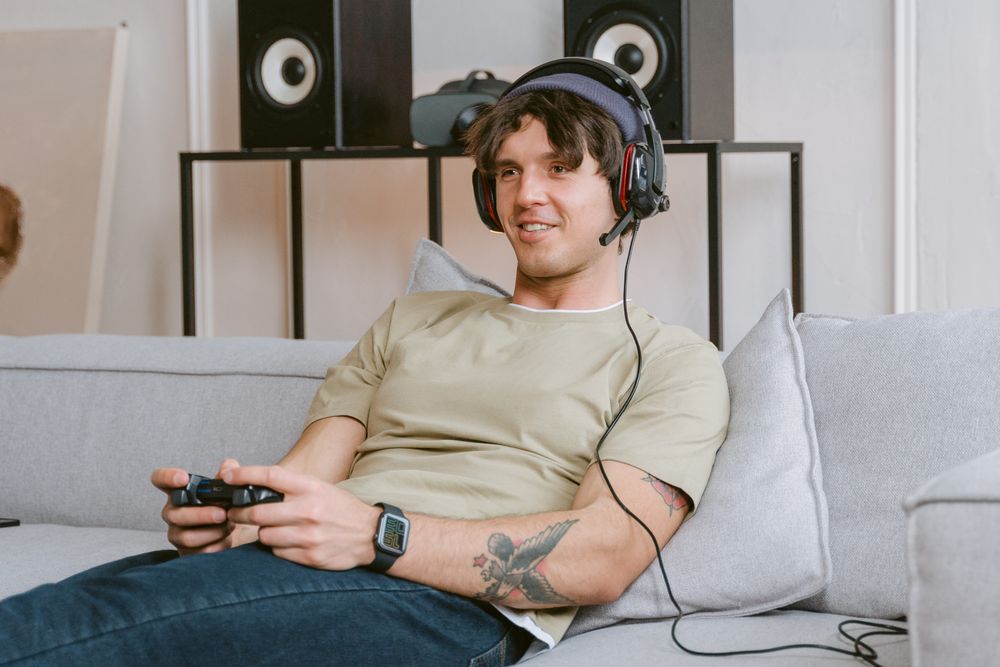
Consoles like the PlayStation 5 and Xbox Series X|S come packed with powerful, proprietary spatial audio engines. By understanding how to tweak these settings for your specific platform, you can dramatically shift your gaming experience. Let’s dive into how to properly calibrate your headset instead of just cranking up the master volume.
Fine-Tuning PS5's Tempest 3D AudioTech
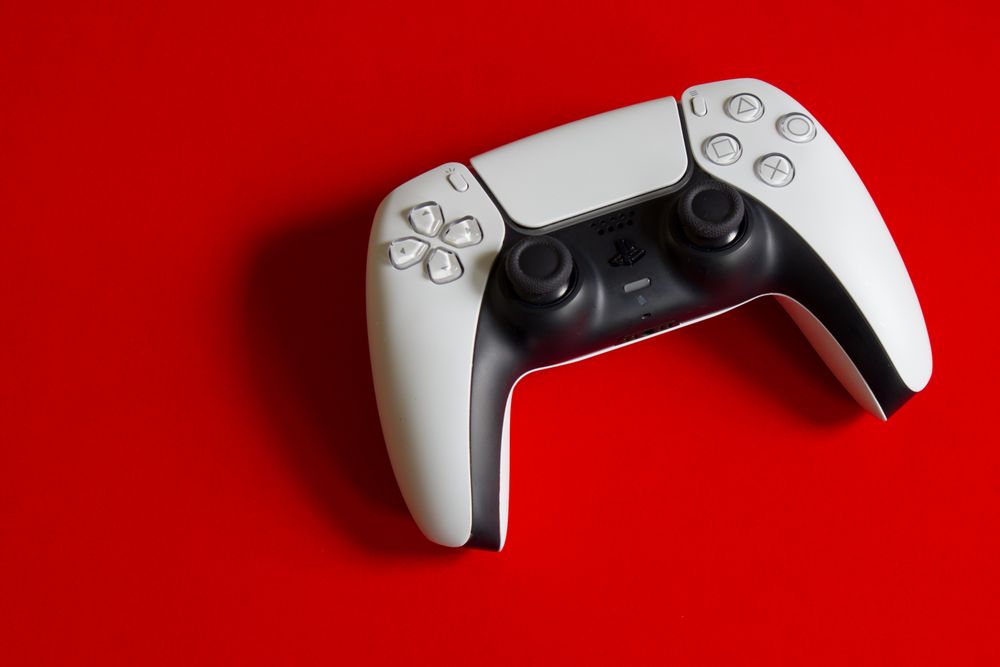
The PlayStation 5 features Sony's custom 'Tempest 3D AudioTech' engine. While it is incredibly powerful right out of the box, it requires custom calibration to match your unique ear anatomy.
Head over to your PS5 Settings > Sound > 3D Audio and select Adjust 3D Audio Profile. You will be presented with 5 different height profiles. Take your time to select the one where the sound source feels closest to your actual ear level—this calibrates the virtual speaker angles specifically for you.
Also, ensure your Audio Output device is correctly matched to your connection type (USB, controller jack, etc.). Incorrect settings can cause the console to apply overlapping audio algorithms, resulting in a muddy, compressed soundstage.
👉 When enabling 3D Audio on PS5, make sure to select the correct headset type to prevent spatial distortion.
Unlocking Dolby Atmos on Xbox Series X|S
Unlike Sony, Microsoft relies on a mix of integrated and licensed external audio solutions. To get the absolute best spatial sound, download the Dolby Access app from the Microsoft Store on your Xbox.
While some premium gaming headsets come with a lifetime Dolby Atmos license pre-activated, others might require a one-time purchase. Once activated, head into the app and choose the 'Game' or 'Competitive' preset. This EQ profile specifically dials back overwhelming bass while boosting high-frequency cues like footsteps and reload sounds.
Finally, go to Settings > General > Volume & audio output and set your Headset format to Dolby Atmos for Headphones to ensure consistent spatial mapping.
Maximizing the Nintendo Switch Audio Experience
Due to its portable nature, the Nintendo Switch does not feature advanced onboard spatial audio. Even when docked, your output options are limited to basic stereo or standard linear PCM surround sound.
To compensate, you will need to rely heavily on your headset's hardware. Using a wireless headset that features built-in virtual 7.1 surround sound processing can help recreate a sense of space that the console lacks natively.
If you experience audio lag or desync, skip the Switch's built-in Bluetooth audio. Instead, plug a low-latency 2.4GHz USB dongle directly into the Switch dock to bypass interference and reduce latency to virtually zero.
Console Audio Formats & Optimization Guide
| Console | Core Spatial Audio Tech | Recommended Optimization |
|---|---|---|
| PlayStation 5 | Tempest 3D AudioTech | Adjust 5-level height profile in system settings |
| Xbox Series X|S | Dolby Atmos / DTS Headphone:X | Install Dolby Access app & configure Competitive EQ |
| Nintendo Switch | Basic Stereo & Hardware Surround | Use 2.4GHz USB dongle & headset-side virtual surround |
Troubleshooting Audio Latency and White Noise
Is your audio lagging behind the action, or are you hearing a constant background hiss? Standard Bluetooth connection is the usual suspect for latency. Upgrading to a dedicated 2.4GHz wireless headset or a wired connection is the best way to ensure instantaneous feedback.
If you hear white noise or static, your microphone monitoring (sidetone) might be cranked too high. Try lowering the mic gain in your console's settings or turning off sidetone completely on your headset.
👉 If your teammates' voices are drowned out by explosions, use your console's Game/Chat balance mixer to prioritize voice chat without turning down the master volume.