The Era of Streaming Account Sharing Limits: How to Protect Your Personal Taste Feed with Profile Management and Algorithm Reset
Streaming Account Sharing: Living Together Isn't Always Simple
Ever hit play on your favorite streaming service on a weekend evening, only to be greeted by a jarring "This TV is not part of your household" message? It's a common frustration. Even if you manage to log in, when friends or family co-opt your profile, your carefully curated recommendation feed can become a chaotic mess, making it harder to find what you actually want to watch and leading to more frustration.
Simply sharing accounts is no longer enough for a smooth viewing experience. To reclaim your personalized recommendations and ensure your profile's independence, it's time for some systematic management and algorithm cleanup. Here are practical tips to fix tangled settings and get your clean feed back.

Step 1: Navigating Household Restrictions (Check Platform Rules)
Starting with Netflix, major streaming services are tightening rules, limiting account sharing to individuals within the same household. If you want to continue sharing with friends or family who live elsewhere, understanding each platform's official options is key.
Sharing Restrictions & Additional Profile Guidelines for Major OTT Platforms
- Netflix: Users outside the primary household must pay for an 'Extra Member' slot. Premium plan subscribers can add up to two extra members, and Standard plan users can add one, at an additional cost of ₩5,000 per person per month.
- Disney+: Has begun officially restricting sharing outside the household. Additional member options will be rolled out sequentially by country. Currently, they offer a 'Profile Transfer' feature to move existing profile data to a new account.
- TVING / Wavve: While not yet strictly enforcing household-based limits, they do apply rules on the number of simultaneous connections allowed per plan (up to 4 devices).
Adding extra members to a Netflix Premium plan and splitting the cost can be a sensible alternative, potentially saving over ₩10,000 per month compared to everyone subscribing to their own separate accounts.
Step 2: Still Getting Sharing Errors? Secure Your Profile with a Lock
Even when sharing with family members who live with you, you might encounter "non-household access" errors. This often happens when your mobile device hasn't connected to your home's main Wi-Fi (router) for a while.
The fix is simple: connect your smartphone or tablet to your home Wi-Fi at least once a month, then launch your streaming app. The system detects you're on the same IP environment and automatically renews the authentication period.
Once your device is authenticated, it's time to secure your profile's independence. A 'Profile Lock' is useful to prevent others from accidentally accessing your profile. On Netflix, you can set a four-digit PIN for each profile within the [Account] menu on the web browser to cleanly block unwanted access.
Step 3: Fixing a Broken Algorithm: Restore with Watch History Reset
If your feed is a mess due to mixed viewing histories or accidental clicks on content you don't like, you need to start by cleaning up your 'watch history' – the foundation of the recommendation system. Algorithms heavily rely on watched videos and search history as key indicators.
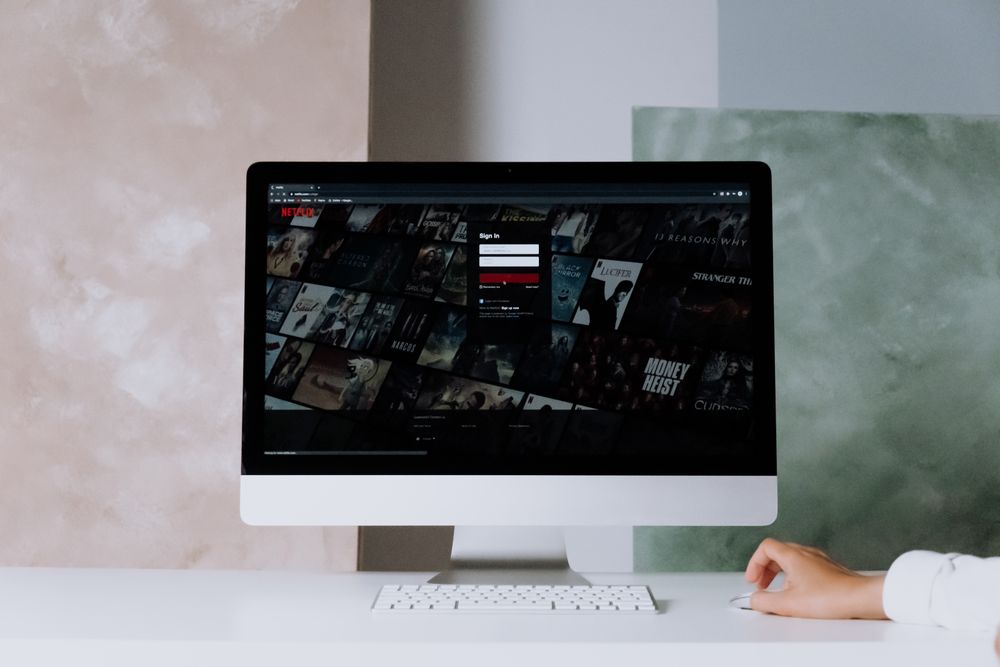
- Netflix: Log in via the PC website, navigate to [Account] > [Profile & Parental Controls] > [Viewing Activity]. Click the hide (block) icon next to the content you want to remove; it's typically excluded from recommendation data within 24 hours.
- Disney+: Since deleting individual watch history is somewhat cumbersome, if other people's history is heavily mixed in, it's more efficient to simply delete the old profile and create a new one.
- YouTube & Watcha: Search terms left in the search bar also continuously influence your feed. It's advisable to periodically clean up your data using the 'Delete watch history & search history' menu within each service's settings.
Step 4: Revive Your Taste Feed with Active Like/Dislike Ratings
After clearing your history, it's time to actively inject your preferences into the algorithm. The 'Rate' (recommend/not recommend) feature, often skipped due to perceived hassle, is the most effective tool for rapidly purifying your feed.
Don't just passively watch content; express your clear opinion. For example, on Netflix, you can distinguish between 'Like' (one thumbs up) and 'Two Thumbs Up' (two thumbs up). Giving 'Two Thumbs Up' to a few representative titles in your favorite genres significantly increases the chance of similar content appearing at the top of your home screen.
For content you don't enjoy, be bold and hit 'Dislike' to remove it from your suggestions. The more actively you express your likes and dislikes, the faster and more accurately the recommendation system will analyze your true preferences.
Step 5: Optimize Profile Quality & Data for Your Viewing Environment
With your profiles and recommendation feed tidied up, the final step is to configure network resource usage for each profile according to its intended use. This helps prevent buffering during simultaneous connections and reduces unnecessary data consumption on mobile viewing environments.
For profiles primarily used on mobile devices like tablets or smartphones, setting the quality to 'Medium' or 'Data Saver' can lighten the load on your data plan. Conversely, for your main profile used on a large TV or 4K monitor, fixing the playback quality to 'High' (or 'Best Quality') will ensure a smooth, clear picture even with momentary network fluctuations. Once you've completed these customized settings based on your usage patterns, you can look forward to more comfortable and immersive viewing sessions every night.