Fix Washed-Out Smartphone HDR Video & Master Mobile LUTs: A Quick Guide
Ever imported a crisp, vibrant 4K HDR clip shot on your smartphone into a video editing app, only to be horrified by a flat, gray, washed-out disaster? You're not alone—over 70% of mobile creators hit this exact wall. What looked blindingly vivid on your phone's OLED screen suddenly loses all its contrast and color in the editor timeline. Why? It comes down to a color space conflict: your modern phone records in a 10-bit HDR format (Rec.2020), while most mobile editing apps default to the traditional 8-bit Rec.709 standard. Pouring a massive bucket of high-dynamic-range color data into a much smaller SDR container causes highlights to blow out and rich colors to look completely drained.
The good news? You don't need expensive desktop software or paid plugins to fix this. With a few hidden settings and simple techniques in mobile editing apps like CapCut, VN, or LumaFusion, you can eliminate washed-out colors and apply a true cinematic feel to your videos. Here is your step-by-step mobile color grading guide.
1. Why Your HDR Footage Turns Dull and Gray in Mobile Editors
Smartphone manufacturers heavily market HDR video recording every year, promising brilliant highlights and rich dark shadows that mirror how the human eye sees the world. However, most mobile editing workflows aren't configured out of the box to process this huge volume of visual data. Popular editing apps still stick to Rec.709 (SDR)—the legacy broadcast standard—as their default workspace setting.
The key technology bridging this gap is Tone Mapping. Tone mapping compresses that massive 10-bit dynamic range smoothly into an 8-bit container without flattening your contrast. When tone mapping fails or isn't triggered automatically, highlights turn chalky and shadows lose their depth. That's why checking your app's color space settings before making any edits is your crucial first step.
2. Practical Fixes: How to Restore Washed-Out Colors on Mobile
If your clip is already looking dull on the timeline, head straight to the Adjustments panel. When using basic apps without automatic HDR conversion, you'll need to manually recalibrate the exposure baseline. A quick and intuitive fix: lower the Exposure by around -10 to -15, then boost the Contrast by +15 to bring back weight and crunch to the midtones.
For cleaner, professional results, use official conversion LUTs. Whether you're shooting Apple Log on an iPhone or HDR10+ on a Samsung Galaxy, applying a standard Rec.2020 to Rec.709 LUT on your base layer instantly revives original contrast and color accuracy. Avoid the temptation to just crank up the Saturation slider all the way to the right—doing so will introduce harsh digital noise and tear apart subtle color gradients. Fix the tone mapping base first, then fine-tune!
HDR Setup Guide by Device & Format
- iOS (iPhone Dolby Vision / Apple Log): Set your project color space to SDR (Rec.709) in apps like LumaFusion or CapCut, then apply the appropriate standard conversion LUT (e.g., Apple Log to Rec.709) to recover proper color rendition.
- Android (Samsung HDR10+): Either use the "Convert to SDR before sharing" option in the native Gallery app before importing, or manually enable the "HDR10+ Tone Mapping" option within supported mobile editing apps.
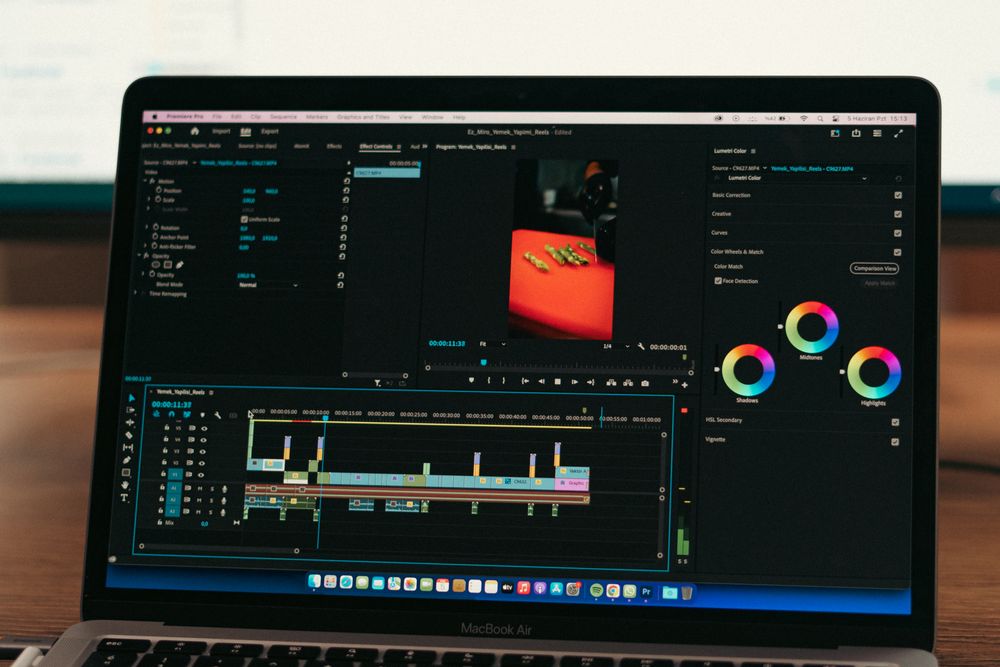
3. Importing .cube LUTs for a Cinematic Mobile Look
To give your videos a distinct visual mood, Look-Up Tables (LUTs) are your best friend. Cinematic color grading used to require powerful desktop rigs, but today, simply saving `.cube` LUT files to your mobile files app allows you to apply professional presets in seconds. Nearly all modern mobile editors support importing custom external LUT files smoothly.
The biggest mistake beginners make here is slapping a newly loaded LUT onto footage at 100% opacity. Smartphone video is heavily compressed compared to footage from cinema cameras; over-applying an aggressive LUT will crush your shadow detail and destroy fine textures.
To keep your footage looking clean and natural, dial down the LUT opacity intensity slider to between 30% and 50%. Applying a classic teal-and-orange cinematic LUT at around 40% strength blends rich warmth into digital footage without making it look over-processed. Start light at 30%, then slowly adjust upward until it feels right to your eyes.
4. Perfecting Skin Tones & Backgrounds with the HSL Panel
Once your overall exposure and mood are dialed in, open the HSL (Hue, Saturation, Lightness) panel to fine-tune specific color channels. Global saturation boosts ruin cinematic polish; targeting individual colors gives you precision control.
For talking heads or portraits, select the Orange channel, lower its saturation slightly, and increase Luminance/Lightness. This instantly clears up dull, yellowish skin tones, making skin look bright, clean, and natural. For outdoor scenery, desaturate overly bright green tones slightly to pull viewer focus back toward your subject.
For sky shots, dropping the brightness of the Blue channel replaces neon blues with a deep, moody, atmospheric sky tone. These subtle channel adjustments elevate a video from a quick phone clip to a polished production.
5. Export Settings: Prevent Color Shift on Instagram & YouTube
You can spend hours color grading, but bad export settings will ruin everything the moment you upload to Instagram or YouTube. Social platforms apply heavy compression algorithms to save bandwidth, and mismatched codecs or crazy high bitrates will cause color banding and muddy tones.
For maximum compatibility, export in the standard H.264 (AVC) format. For mobile-focused social uploads, 1080p (FHD) at 15–20 Mbps bitrate is the sweet spot. If you're outputting 4K content, aim for 35–50 Mbps to maintain color fidelity without triggering aggressive platform re-compression.
Crucially: unless you are intentionally creating an HDR-native upload, ensure "Export as HDR" is turned OFF. Exporting as a clean SDR Rec.709 file guarantees your colors look consistent on any screen, whether your viewer is on an old Android phone or a brand-new iPad.
Understanding color space dynamics replaces guesswork with total control over your mobile clips. Grab an old video resting in your phone gallery today and give these simple setting tweaks a try!